简化HTTP服务器的配置和管理,使用系统自带的服务,无需安装任何东西,将指定目录作为HTTP服务器的根目录,一键开启静态服务器
实现原理
Window10和Window11自带PowerShell,使用HttpListener类创建HTTP服务,绑定端口接收请求并返回指定文件。Linux系统自带python,用http.server模块即可创建简易的HTTP服务器。
Windows系统实现
创建server.ps1文件,并写入如下内容
# PowerShell Web Server
Param(
    [parameter(Mandatory=$false)][Int]$port=8080,
    [parameter(Mandatory=$false)][String]$webPath="www"
)

Add-Type -AssemblyName System.Web

$scriptPath = $PSScriptRoot

$http = [System.Net.HttpListener]::new()
$http.Prefixes.Add("http://localhost:$port/")
$http.Start()

function ConvertTo-Base64($str){
    $result = [Convert]::ToBase64String([System.Text.UTF8Encoding]::UTF8.GetBytes($str))
    return $result
}

function ConvertFrom-Base64($str){
    $byteArray = [Convert]::FromBase64String($str)
    return [System.Text.UTF8Encoding]::UTF8.GetString($byteArray)
}

function Send-WebResponse($context, $content) {
    if($content.GetType().Name -ne "String"){
        $content = ConvertTo-JSON $content
    }
    $buffer = [System.Text.Encoding]::UTF8.GetBytes($content)
    $context.Response.ContentLength64 = $buffer.Length
    $context.Response.OutputStream.Write($buffer, 0, $buffer.Length)
}

function Get-PostData{
    $reader = new-object System.IO.StreamReader($context.Request.InputStream)
    $text = $reader.ReadToEnd()
    # $text = $text.Replace("%3D","=")
    # $text = ConvertFrom-Base64 $text
    $text = [System.Web.HttpUtility]::UrlDecode($text)
    Write-Host "$text"
    return ConvertFrom-Json $text
}

if ($http.IsListening) {
    write-host "HTTP Server Ready!  " -f 'black' -b 'gre'
    write-host "$($http.Prefixes)" -f 'y'
}

# INFINTE LOOP, Used to listen for requests
while ($http.IsListening) {
    $context = $http.GetContext()
    $RequestUrl = $context.Request.Url.LocalPath

    Write-Host "$((Get-Date).ToString('yyyy-MM-dd HH:mm:ss')) : $($context.Request.Url)" -f 'mag'

    # Get Request Url
    if ($context.Request.HttpMethod -eq 'GET') {
        # Redirect root to index.html
        if($RequestUrl -eq "/") {
          $RequestUrl = "/index.html"
        }
        if(Test-Path "$scriptPath\$webPath\$RequestUrl"){
            $fileStream = [System.IO.File]::OpenRead( "$scriptPath\$webPath\$RequestUrl" )
            $fileStream.CopyTo( $Context.Response.OutputStream )
            $fileStream.Close()
        }
        else{
            Send-WebResponse $context "404 : Not found $RequestUrl"
        }
        $context.Response.Close()
    }
}
脚本接收两个参数,第一个是绑定端口,默认为8080,第二个是指定根目录,默认为当前目录下的www\目录。打开PowerShell窗口,执行.\server.ps1,也可以右键菜单使用PowerShell执行此脚本,出现下图窗口表示执行成功,关闭窗口就可以关闭HTTP服务器。如果遇到执行异常,可以管理员身份打开PowerShell,运行命令Set-ExecutionPolicy RemoteSigned解锁ps1脚本执行权限(系统默认没有开启)。
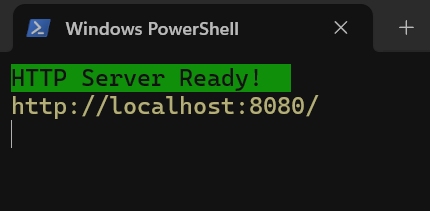
为了方便,可以创建如下内容的的start.bat文件,一键开启静态服务器,无需管理员身份,也没有权限问题。
if "%1" neq "" (set port=%1) else (set port=8080)
if "%2" neq "" (set root=%2) else (set root=www)

start http://localhost:%port%
powershell -ExecutionPolicy RemoteSigned .\server.ps1 %port% %root%
Linux系统实现
相比Windows系统简单许多,Linux系统默认已经安装python,使用http.server模块,一条命令可启动。绑定本地网卡地址,监听8080端口,使用www作为根目录,开启HTTP服务器的命令如下。
python -m http.server 8080 -b localhost -d www
可选参数说明
- -b:指定绑定网卡地址,默认为0.0.0.0,不安全,可更改为localhost
- -d:指定根目录,默认为当前目录
为了方便,可以创建如下内容的的start.sh文件,一键开启静态服务器。
#!/bin/bash

xdg-open http://localhost:8080
python -m http.server 8080 -b localhost -d www